
M3D Micro desktop handoff
Export for an original M3D Micro or Micro+.
Prepare the model in EFUGY, share a dedicated Desktop Host File, then use the stock M3D desktop app for printer setup and USB communication.
This is a desktop-host handoff—not direct USB printing, removable-media G-code, or a generic file for another printer.
What EFUGY prepares
A host file for the printer’s existing desktop workflow.
Choose the original M3D Micro or Micro+ profile, prepare and preview the job, then select Share M3D Desktop Host File. The exported file contains the print body expected by the stock desktop host.
- Use the profile that matches the printer.
- Inspect the complete toolpath before sharing.
- Move the file to the computer that runs the M3D desktop app.
- Let the desktop app handle initialization and USB transport.
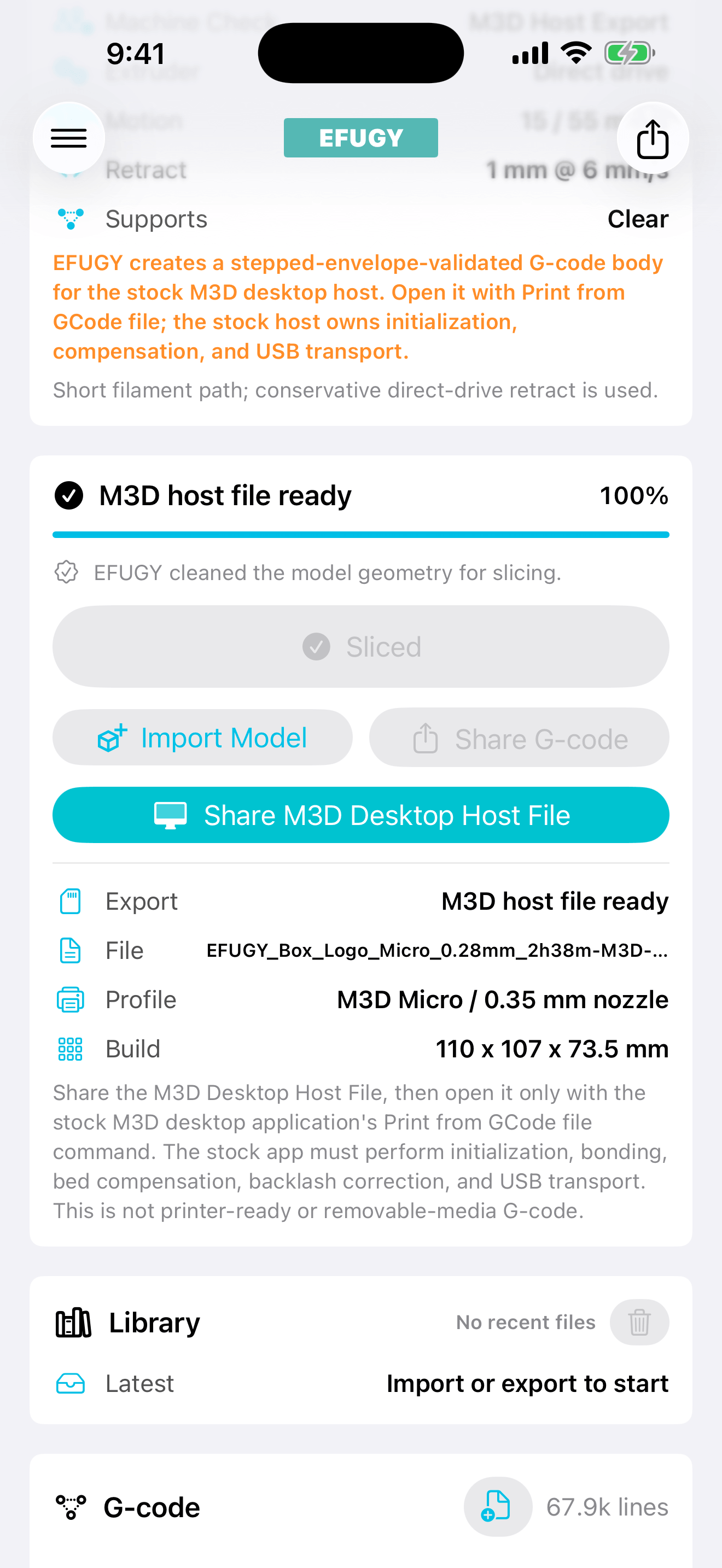
Four-step handoff
Prepare on mobile. Finish on the desktop host.
The two apps have different jobs. Keeping that boundary clear prevents the wrong file from being sent to the printer.
- 01
Select the M3D profile.
Choose M3D Micro or M3D Micro+ before preparing the model.
- 02
Slice and inspect.
Check dimensions, placement, temperatures, supports, and the complete toolpath in EFUGY.
- 03
Share the Desktop Host File.
Move the dedicated host input through Files, AirDrop, Mail, or another destination you trust.
- 04
Open it in the M3D desktop app.
Use the stock app’s Print from GCode file workflow. The desktop host remains responsible for setup and USB communication.
Where each tool stops
The desktop host remains part of the machine.
EFUGY adds mobile model preparation without replacing the stock application’s printer initialization or USB connection.
- EFUGY
- Import, prepare, slice, preview, and create the dedicated host input
- Files or Share
- Move the host input to the computer you use with the printer
- M3D desktop app
- Initialize the printer, open the host file, and manage USB communication
Use the file only with the matching host workflow: do not copy it to an SD card, send it directly over USB, or use it with a different printer.
Before starting the printer
Check the model, host, and machine.
Confirm the exact printer profile, inspect the preview, use the matching stock desktop application, and supervise the first layers. Older hardware and host software can behave differently across computers and operating systems.