
Mobile 3D slicing · Version 3 is live
EFUGY 3D Slicer for iPhone and iPad
Your slicer travels with the model. Import STL or OBJ, tune the job, slice locally, inspect every layer, and export G-code from iPhone or iPad.
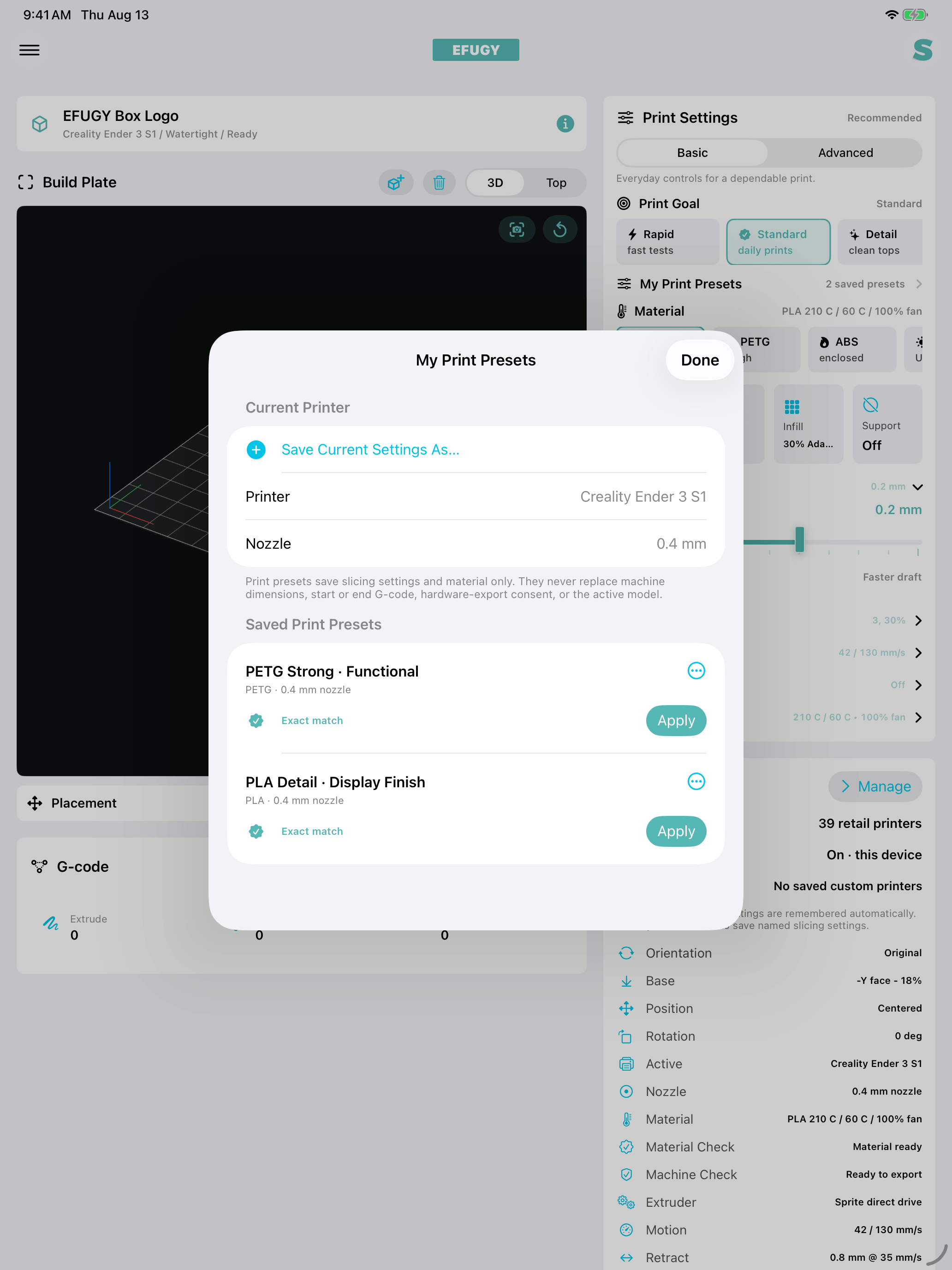
The current release adds reusable print presets, adjustable Z-hop, cleaner first-layer paths, Klipper thumbnails, and refined printer profiles.
Who it is for
Prepare and inspect a print wherever the model finds you.
Made for makers, designers, artists, educators, students, and print operators who want to prepare or check a job without returning to a desktop.
- Inspect a model when you are away from a desktop.
- Prepare a job beside the printer or in a classroom.
- Compare profile choices before you spend material.
- Move G-code through Files, AirDrop, storage, or another supported share destination.
Four steps to G-code
Import, configure, review, export.
G-code is the instruction file your printer reads. A printer profile supplies the machine dimensions and starting settings used to prepare it.
Import STL or OBJ
Open model files from Files, iCloud Drive, AirDrop, Mail, external storage available to iOS, or another app’s share workflow.
Place and prepare
Move, scale, rotate, and check the model against the selected printer’s build volume. Choose nozzle, material, layer quality, infill, supports, and adhesion.
Slice and preview
Convert the model into layers and toolpaths, then inspect extrusion, travel, support, and layer behavior in build-up or layer views.
Export G-code
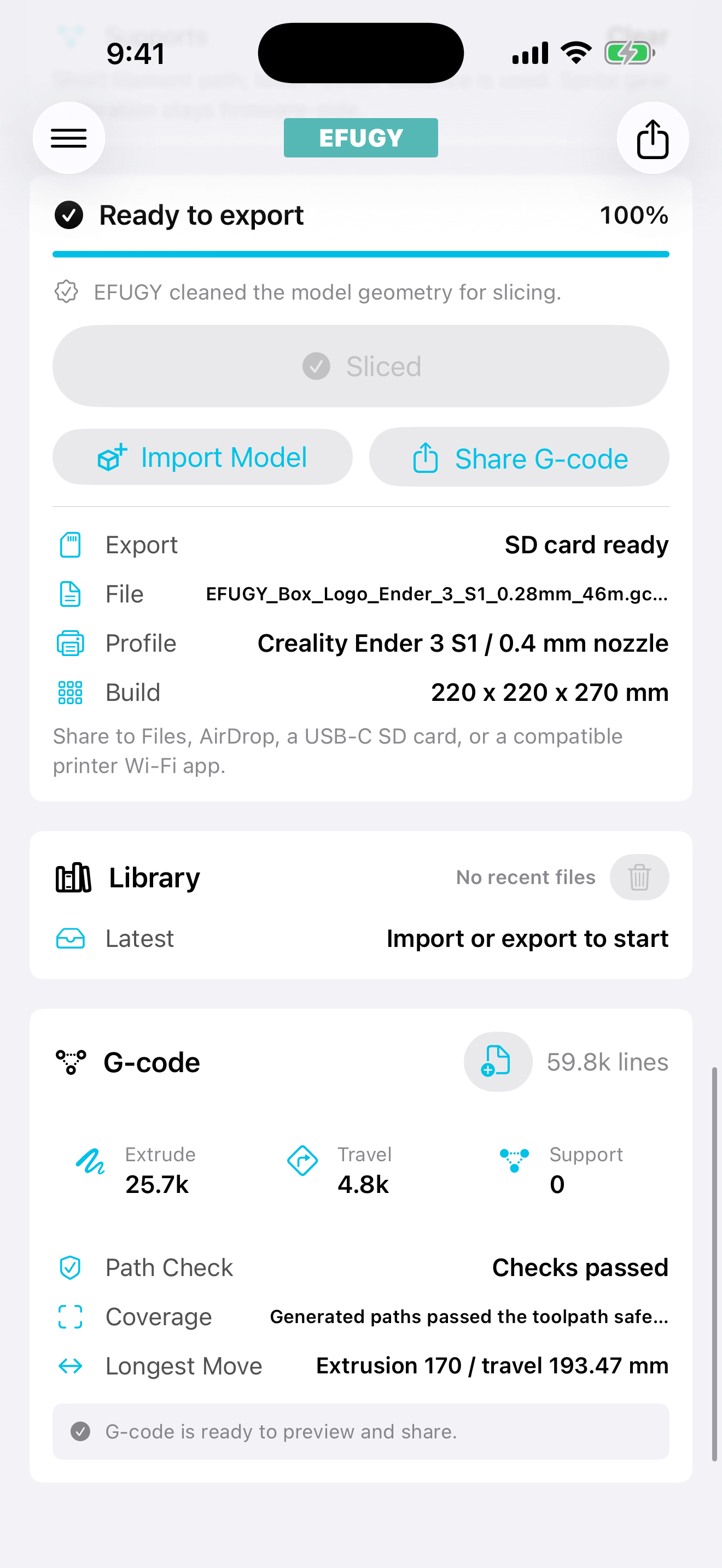
Save or share the generated printer instructions. Review the file and use the transfer method required by your printer.
Model placement in Version 3
Rotate first. Fit when you choose.
EFUGY preserves the model’s imported dimensions. If a part arrives outside the selected printer’s build volume, you can inspect and rotate it before deciding whether to use Fit to Printer.
- 01Keep the original dimensions
Import begins from the model’s own size instead of silently shrinking it to the build plate.
- 02Rotate and inspect
Try a better orientation while the original scale remains visible—even when the model is currently out of bounds.
- 03Fit only when you choose
Fit to Printer is explicit. Original Size returns to the stored original-size state, and out-of-bounds models stay blocked from slicing.
A practical mobile handoff
From Files to your printer.
Open a model from the Apple Files workflow, prepare it locally, inspect the generated toolpath, then export G-code to the destination your printer setup uses.
Live on the App Store
What Version 3 changes.
Version 3 brings a clearer toolpath preview, more control over interior structure, and stronger mobile import and export tools.
Metal-powered preview
Review complete active layers in 3D or top view, scrub one layer at a time, or play the print from the first layer up.
Named print presets
Save settings you want to reuse, then apply, rename, duplicate, or delete them without replacing the printer profile.
Adjustable Z-hop
Set nozzle lift from 0 to 2.0 mm, or return to the selected profile’s default.
Cleaner solid-layer paths
First and bottom solid-fill regions use safer neighboring-line paths to reduce avoidable repositioning.
Adaptive infill
Add more structure near walls and surfaces while leaving the deep core more open.
Arbor supports
Build branches that merge into trunks, steer around the model, and reach critical overhangs.
Version 3
Made for iPhone and iPad.
Version 3 is available now on the App Store. Check the essentials before you download.
- Devices
- iPhone and iPad
- Minimum OS
- iOS/iPadOS 17.0
- Price
- Free
- Model import
- STL and OBJ
- Output
- Generated G-code for supported profiles
- Transfer
- Files and available iOS sharing destinations
- Core processing
- Local-first; no required cloud slicing account
- App Privacy label
- Data Not Collected
- Developer
- Rule Mobile LLC
Start with your printer
A profile gets the machine dimensions and defaults in place.
Choose the exact model when it is available. Beta profiles need extra review because firmware, nozzle, material, and machine condition can change the result.
Before any print
- Confirm the exact printer model and build volume.
- Confirm nozzle diameter, filament diameter, and material temperatures.
- Review start and end G-code for your firmware and machine.
- Preview travel, supports, adhesion, and first-layer behavior.
- Supervise the print according to the manufacturer’s safety guidance.
Know before you slice
A few checks protect the print.
Mobile resources, printer setup, and transfer methods vary. Review the points that affect your job before exporting.
Printer support varies
Do not assume a successful result on one printer transfers unchanged to a different model, firmware configuration, nozzle, or machine condition.
Dense models take more work
Large or complex models may take longer to import or slice on a mobile device.
iPhone and iPad
EFUGY is designed and supported for iPhone and iPad. The current App Store listing does not verify macOS support.
Klipper/Moonraker transfer
EFUGY supports the access and upload responses used by the factory QREATTE Slice1 Moonraker v0.8 environment. A compatible local connection is still required, and Files export remains available.
Ready to prepare a job?